

Every time I come back to Canada from China, one of the first things I notice is the blue sky and clean air. The second: Internet that just works. It’s great to have an Internet connection that is both highly-reliable, and so fast that it doesn’t impede thought or communication.
In China, Internet service is unreliable and slow for me, because I’m constantly using sites/apps from the outside world.
It doesn’t affect Chinese people much, because they have fast and ubiquitous connection for all their local apps – WeChat, Douyin, Baidu, etc.
But, running a digital marketing agency in China, we have clients all over the world. I, myself, am outside of the office in Nanjing much of the time, and other employees often work from home too.
One of the more practical issues we had to tackle was how to improve video conferencing to make it easier for us all to communicate.
In 2013 and 2014, we invested at least 100 hours testing, and have greatly improved our video and audio calls. Then, for the following 5 years, we tested out several adjustments and updated this post.
Here’s how we do it now. But first, I should note that there aren’t any affiliate links in this post, and none of the mentioned brands are clients of ours. We’re objective.
1) CONFERENCE SOUND – JABRA SPEAK SPEAKERPHONE.
Jabra’s speakerphone is easy to move around and provides pretty good sound, without an echo.
You can now find several models on Jabra’s site. We paid about USD100 for the Jabra Speak 410, which was definitely worth the investment. It’s lasted five years so far.
2) CONFERENCE VIDEO CAPTURE – LOGITECH C930E WIDE-ANGLE HD CAMERA.
There are two main problems with laptop webcams. First, the picture quality is low. Second, the angle isn’t wide enough to get everyone in the picture.
We now use this wide-angle camera to get everyone in view, and with a high-quality image.
Check out Logitech’s page for more info. We paid about USD130.
3) SOFTWARE – ZOOM AND SKYPE
In short, we recommend Zoom and Skype. We need both because sometimes one doesn’t work well.
In 2014, we tested Skype, TeamViewer, GoToMeeting, ooVoo and QQ extensively. I mean, we spent many hours in meetings with all of these and recorded progress over time.
The result: GoToMeeting’s China edition (website in Chinese) was by far the best for screen sharing and video conferencing. A key advantage was that the frame-rate kept up with the conversation. Plus, it allows people to call in by phone too. Note that we were using the Chinese edition of GoToMeeting. The US-version shouldn’t provide as high-of-quality in China as we experienced.
Skype is great for textual chat, so we still use it. But video calls are constantly dropped and screen sharing rarely works at all.
As for TeamViewer and QQ, they froze or dropped so much that we didn’t continue using them.
We later added Zoom to the mix. We didn’t test it as rigorously as the others, but over the years it seemed that Zoom worked more consistently than GoToMeeting.
Still, neither Zoom nor Skype work 100% of the time, so we keep them both handy. Note that Zoom does require a VPN still.
4) INDIVIDUAL SOUND – LOGITECH WIRELESS HEADSET OR SONY EARPHONES AND YETI MIC
I’m a big fan of Logitech by the way…
For meetings with individuals, a headset is just going to work a lot better than the default equipment on laptops.
Personally, I used the Logitech H800, which costs about USD 130. Everybody in the company seems to have a different headset, and the difference in audio quality isn’t very great. The jump in quality from simply using a laptop’s default mic and speakers, to using a headset is very noticeable though.
My Logitech was eventually destroyed because my home office has an infestation of, um, children.
I now use a Yeti microphone, which is totally overkill for meetings with clients but sounds great. The only reason I have it is for the occasional live stream. It costs about 130 USD.
And, I use Sony WH-1000MX headphones. At 350 USD, I can’t recommend them. The sound was great, but they developed a clicking sound that thousands of other people on the Internet have complained about. Sony’s support staff just say “it’s physical damage, so not under warranty.”
So, the Logitech wireless headset wins over the Sony + Yeti configuration, even though it’s about 4X cheaper!
5) VIDEO DISPLAY – CHEAP-O WIDESCREEN TV
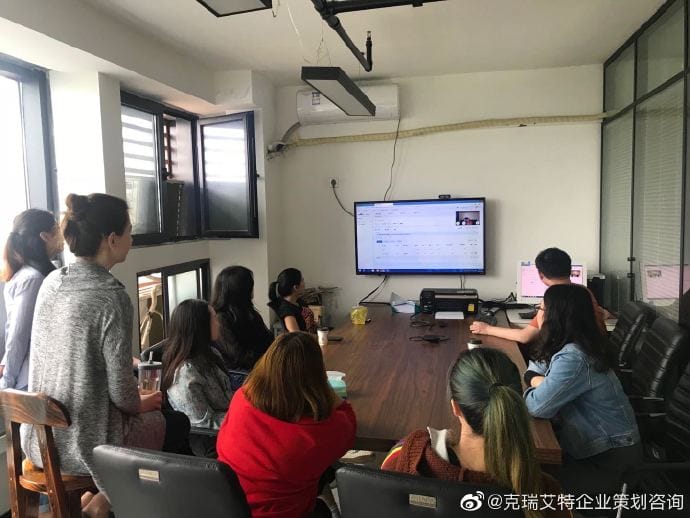
For meetings with 10 people, it sucks to have to huddle around a laptop. We used a widescreen TV from TCL before . I can’t recall the details, but it was about 400 USD. That TV broke because a broken air conditioner leaked all over it, then we bought a Coocaa brand TV, which was also relatively low cost. We decided not to go high-end on this for two reasons: First, most of the TV bell-and-whistles wouldn’t be used, because we’re only using it as a screen basically. We aren’t using it to actually watch HD 3D movies or run apps. Second, the quality of video available via the Internet connection is the bottleneck, not the TV video quality.
6) VPNS
Astrill works so-so, which is better than most.
I think we’ve tried all the major VPNs, and none work perfectly or even reliably. They cut out, they get slow, they even stop working completely sometimes. VPNs are especially unreliable during major political events in China, such as China’s 70th anniversary.
Polling our staff, their favourite now is Astrill. In fact, many of our Chinese staff members think it’s just great. However, our foreign staff – the ones addicted to Netflix, YouTube and Facebook – still really prefer the VPN-free connections of their home countries.
7) PRACTICE!
Even with all this cool gear, we found it’s important to set guidelines for conferencing behaviour and just practice.
Here are some guidelines for newbs:
- Lighting should be in front of you, not behind you, so that your face is clear. Soft lighting is best. Personally, I aim two swivel lights off the wall.
- Keep your hands away from your face, so that your face is visible.
- Position the webcam so that your face is close to the center of the screen and your whole head is visible.
- Test your equipment ahead of time so that you know how to use it.
- Try to choose an environment without much background noise.
BONUS: HOW TO IMPROVE YOUR VIDEO CALLS AT HOME
I recorded this 3-minute video for our staff, to help them improve their video meeting quality with very little effort and no new equipment. The tips are obvious, yet people forget to do them.
There you have it. That’s how we improved our video conferencing. Have any questions? Have any tips of your own?